Crypto Exchange API Key Setup for Trading Bots: A Practical Guide

Getting a trading bot connected to your exchange is one of the most security-sensitive steps in automated trading. A single misconfigured API key — wrong permissions, no IP restriction, or a key stored in plain text — can expose your account to serious risk. This guide walks you through everything: what exchange API keys are, which permissions to enable (and which to never touch), how to generate keys on major exchanges, and how to verify the connection before your bot trades a single satoshi.
What Is a Crypto Exchange API Key Setup for Trading Bots?
A crypto exchange API key setup for trading bots involves generating a public/private key pair on your exchange, granting it specific permissions (read, trade — not withdraw), and securely handing those credentials to your bot platform. The exchange uses the key pair to authenticate bot requests without ever exposing your password. The public key identifies your application; the secret key signs each request and must never be shared. Together they let a bot read balances, place orders, and cancel positions — all within the boundaries you define.
What Are Exchange API Keys and Why Do They Matter?
Every major crypto exchange — Binance, Coinbase Advanced, Kraken, Bybit, OKX — exposes a REST (and often WebSocket) API that lets software interact with your account programmatically. Instead of logging in as a human, your bot authenticates using a key pair:
- API Key (Public Key): A unique identifier, safe to reference in logs.
- Secret Key: A cryptographic secret used to sign requests. Treat it like a password — expose it once and you must rotate immediately.
- Passphrase (some exchanges): A third credential layer used by exchanges like OKX and Coinbase Advanced.
Because the key is scoped to specific permissions, a well-configured API key is far safer than sharing your account credentials. The bot can only do what you explicitly allow.
"A trading bot only needs to read your balances and place orders — any key permission beyond that is unnecessary attack surface."
What Permissions Should I Enable for a Crypto Trading Bot API Key?
This is the single most important configuration decision. Most exchanges offer three core permission categories:
| Permission | Use Case | Recommended for Bots? |
|---|---|---|
| Read / View | Fetch balances, order history, ticker data | ✅ Always enable |
| Trade / Spot & Futures | Place, modify, and cancel orders | ✅ Enable for active bots |
| Withdraw | Move funds off-exchange | ❌ Never enable for bots |
| Sub-account management | Admin-level account control | ❌ Never enable for bots |
| Internal transfer | Move between sub-accounts | ⚠️ Only if your strategy requires it |
The key rule: enable the minimum permissions required for your strategy. A read-only key is enough for screeners and dashboards. A trade-enabled key is needed for order execution. A withdrawal-enabled key is needed by exactly zero trading bots — its only effect is to expand your risk surface.
How Do I Create an API Key on Binance for a Trading Bot?
Binance is the most commonly used exchange for bot trading, so here is a concrete walkthrough. The steps are similar on most platforms.
- Log in to Binance and navigate to Account → API Management.
- Click Create API and choose System-generated (recommended over user-generated for bots).
- Complete identity verification if prompted — Binance requires this before API access.
- On the permissions screen, enable Enable Reading and Enable Spot & Margin Trading. Leave Enable Withdrawals unchecked.
- Under IP Access Restrictions, select Restrict access to trusted IPs only and enter the static IP address of your bot's server. If your bot runs on a cloud platform with a fixed IP, use it. If not, consider a dedicated VPS with a static IP.
- Copy both the API Key and the Secret Key immediately — Binance only shows the secret once.
- Store both values in a secrets manager (not a notes app, not a spreadsheet).
On Kraken, the equivalent is found under Settings → API. On Bybit, it's under Account & Security → API. On OKX, navigate to Profile → API and note that OKX requires a passphrase in addition to the key pair.
Common Configuration Mistakes to Avoid
- Copying keys with trailing spaces — a single invisible character breaks HMAC signature validation and produces cryptic "invalid signature" errors.
- Using a single key for multiple bots — if one bot is compromised, all bots are.
- Skipping IP whitelisting — without it, anyone who obtains your key can use it from anywhere in the world.
- Never rotating keys — a key with no expiry that is never rotated is a long-lived vulnerability.
What Is the Difference Between Read-Only and Trade-Enabled API Keys?
A read-only key can fetch data — balances, open orders, trade history, ticker prices — but cannot submit or cancel orders. It is the right choice for dashboards, portfolio trackers, and market screeners where no order execution is needed.
A trade-enabled key can do everything a read-only key can, plus place, modify, and cancel orders on spot, margin, or futures markets (depending on which sub-permissions you grant). This is what an execution bot requires.
"Read-only keys are safe to use broadly for monitoring tools. Trade-enabled keys deserve a much narrower scope — one key per strategy, IP-restricted, rotated regularly."
The practical upshot: start every integration with a read-only key to test data connectivity. Only upgrade to a trade-enabled key once you have confirmed the connection is healthy and the bot logic is validated.
How Do I Keep My Exchange API Keys Secure?
Security hygiene for API keys follows a short but non-negotiable checklist:
- Never hardcode keys in source code. Even in private repositories, keys embedded in code have a habit of leaking through git history, screenshots, or accidental shares.
- Use IP whitelisting on every exchange that supports it. Binance, Kraken, Bybit, and OKX all offer this — use it.
- Store secrets in an encrypted secrets manager, not environment files committed to version control, not in Slack messages, not in browser autofill.
- Rotate keys on a schedule — every 30–90 days is common practice, or immediately after any suspected exposure.
- Audit permissions periodically. Exchange UIs sometimes reset or add permissions after platform updates — verify your settings after any exchange maintenance window.
- Monitor API usage logs available in your exchange dashboard. Unexpected request volumes or unfamiliar IP addresses are early warning signs.
How Do I Connect an API Key to a Trading Bot Platform?
Most bot platforms accept API credentials through a secure settings panel. The general flow is:
- Paste your public API key and secret key (and passphrase, if required) into the platform's exchange connection form.
- The platform attempts a test request — typically a balance fetch — to confirm the credentials are valid.
- If the test fails, the platform should surface a human-readable error: "Invalid signature," "IP not whitelisted," "Insufficient permissions," etc.
- Once the connection is confirmed, the platform stores your credentials in encrypted form and uses them to authenticate future bot requests.
Building a Connection Tester with Cryptohopper.AI
Cryptohopper.AI is an AI-powered builder that lets you describe the tool you want in plain language and generates the code automatically. You can describe an "API key connection tester" — a small web app that accepts an exchange name, API key, secret, and optional passphrase, then hits the exchange's balance endpoint, checks which permission scopes are active, and reports the result in plain English ("Connection successful — read and trade permissions confirmed" or "Error: IP address not whitelisted").
Critically, Cryptohopper.AI stores all project secrets — including any API credentials you configure — encrypted at rest using AWS KMS, and injects them at runtime. Your raw keys never appear in generated code or application logs. The generated app is automatically deployed to a <your-project>.cryptohopper.app subdomain, no manual deploy step required, and connects to your Cryptohopper account via OAuth for seamless integration with your existing bots.
Can a Trading Bot API Key Be Used to Withdraw Funds?
Only if you explicitly enable the withdrawal permission — which you should never do for a trading bot. By design, API keys are scoped: a key without withdrawal permissions cannot move funds off the exchange, regardless of who controls it. This is the primary reason traders use API keys instead of account credentials for bots — the blast radius of a compromised key is strictly bounded by its permission set.
If you ever receive pressure (from a "bot service," a social media contact, or an unsolicited tool) to generate a withdrawal-enabled API key, treat it as an immediate red flag. No legitimate trading bot requires withdrawal access.
Wrapping Up
A correctly configured crypto exchange API key setup for your trading bot is the foundation everything else is built on. Enable read and trade permissions, block withdrawals, restrict by IP, store secrets in an encrypted vault, and always run a connection test before live trading. The few minutes it takes to harden your key configuration are among the highest-leverage security actions available to any automated trader. Crypto trading carries substantial risk of loss — controlling your API key permissions is one of the few risks you can eliminate entirely.
Frequently asked questions
How do I create an API key on Binance for a trading bot?
Log in to Binance and go to Account → API Management. Click Create API, choose System-generated, complete any identity verification, then enable Read and Spot & Margin Trading permissions. Under IP Access Restrictions, add your bot server's static IP. Copy both the API Key and Secret Key immediately — the secret is only shown once. Never enable withdrawals for a bot key.
What permissions should I enable for a crypto trading bot API key?
Enable Read (to fetch balances and market data) and Trade (to place and cancel orders). Never enable Withdraw or sub-account management permissions for a bot. The principle is minimum necessary access — a bot that only needs to trade on spot markets should not have futures or margin permissions enabled either.
How do I keep my exchange API keys secure?
Never hardcode keys in source code or store them in plain-text files. Use IP whitelisting on every exchange that supports it, store secrets in an encrypted secrets manager, rotate keys every 30–90 days or immediately after any suspected exposure, and periodically audit the permission settings in your exchange dashboard to catch any unexpected changes.
Can a trading bot API key be used to withdraw funds?
Only if the withdrawal permission is explicitly enabled when creating the key. You should never enable this for a trading bot. Without the withdrawal permission, a compromised key cannot move funds off the exchange — this is exactly why API keys are safer than sharing account credentials. Any service asking you to enable withdrawal permissions for a bot is a red flag.
What is the difference between read-only and trade-enabled API keys?
A read-only key can fetch data — balances, order history, prices — but cannot place or cancel orders. It is the right choice for dashboards, screeners, and portfolio trackers. A trade-enabled key can do all of that plus submit and cancel orders. Use read-only keys for any tool that does not need order execution, and reserve trade-enabled keys for active bot strategies, IP-restricted and rotated regularly.
How do I connect an API key to a trading bot platform?
Enter your public API key, secret key, and (if required by your exchange) passphrase into the bot platform's exchange connection form. The platform will run a test request — usually a balance fetch — to confirm the credentials work and the correct permissions are in place. If it fails, the platform should give a specific error such as 'IP not whitelisted' or 'Invalid signature' so you can pinpoint and fix the issue before going live.
Subscribe to the Cryptohopper newsletter
New posts, product updates, and the occasional lesson — straight to your inbox.
We'll never share your email. Unsubscribe anytime.
Related articles
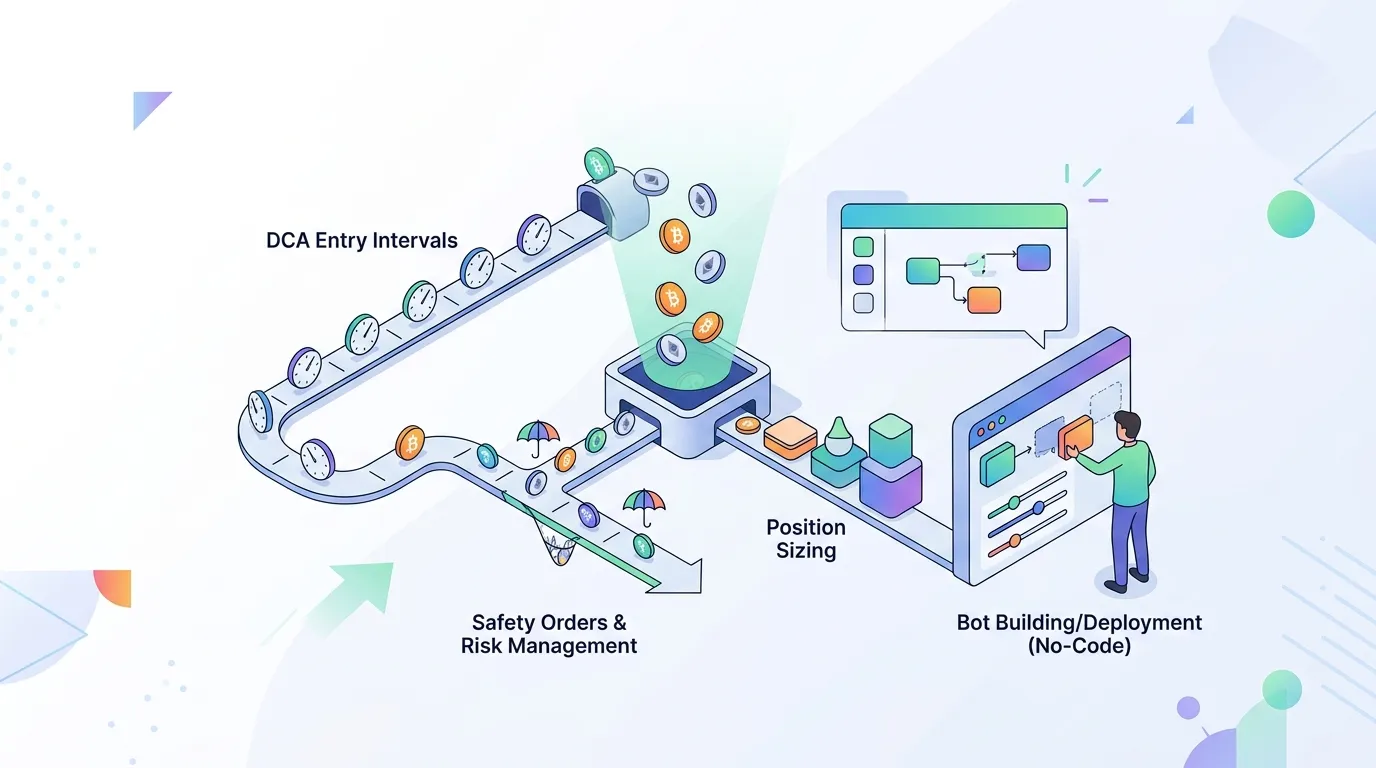
How to Build a DCA Crypto Trading Bot: A Practical Guide
Learn how Dollar-Cost Averaging works in crypto, how to configure entry intervals, safety orders, and position sizing, and how to build and deploy your own DCA crypto trading bot without writing code.

How to Build a Trailing Stop-Loss Crypto Bot That Protects Profits
Learn how a trailing stop-loss crypto bot works, how to design its core decision loop, and how to configure trail percentages to lock in gains while limiting downside risk.

RSI Crypto Trading Bot: A Practical Build Guide
Learn how an RSI crypto trading bot detects overbought and oversold conditions, how to configure RSI periods and timeframes, and how to validate your strategy before going live.